
Once a global layer exists, you can add it to any other configurator.
Importing
- Open the product's configurator,
- Go to the Layers section,
- Press Import global layer,
- In the Import Global Layer window, find the layer you want — use the filter box to narrow the list by name,
- Select it,
- Press Import Selected.
The layer appears in the product's layer list, complete with all of its choices.
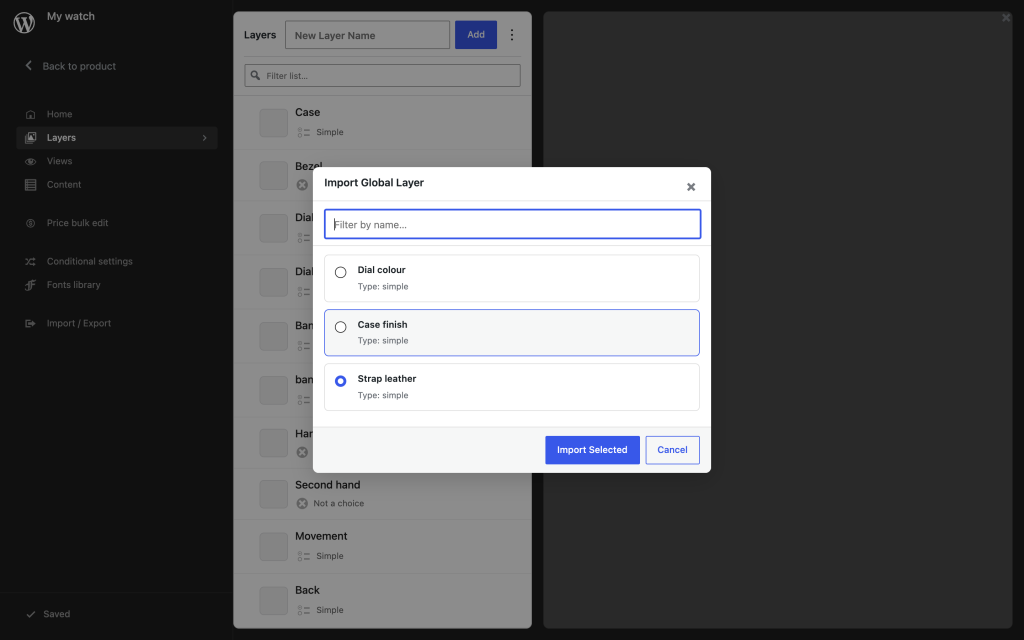
You can import several global layers into the same product, and mix them freely with the product's own local layers. Order them in the layers list exactly as you would any other layer.
What is linked and what is not
This is the important distinction:
- The layer and its choices are linked. They are not copied. Editing them changes every product using that global layer.
- The layer's position in the stack is local. Where the layer sits relative to the product's other layers is a per-product decision.
So the contents are shared, while how the product uses them stays under the individual product's control.
Working with an imported layer
An imported global layer is locked in the editor by default. Its settings and choices are visible but greyed out, and pasting into it is blocked, so you cannot change shared data while focused on one product.
To change the layer for everyone, enter edit mode for it explicitly. To change it for this product only, it should not be a global layer — build a local layer instead, or use Make local copy thinking from global configurators as the model: shared things stay shared until you deliberately detach.
Removing a global layer from a product
Removing the layer from a product's layer list removes it from that product only. The global layer itself, and every other product using it, is unaffected.
To delete the layer everywhere, delete it from the Global Layers screen instead — after checking which products still rely on it.
A note on images
The choices in a global layer carry their own images. If products differ in size or shape, a shared image layer may not line up correctly on all of them. Global layers work best for:
- Swatch and colour layers, where the choice is represented by a swatch rather than a product image,
- Ranges of products that share the same underlying artwork and dimensions.
Where the artwork genuinely differs per product, keep the layer local.