Price bulk edit shows every priced value of a configurator in one table, so you can review and change prices without opening each choice. Open the product's configurator and choose Price bulk edit in the sidebar.
Changes made here are like changes made on the Content screen: nothing is stored until you press Save.
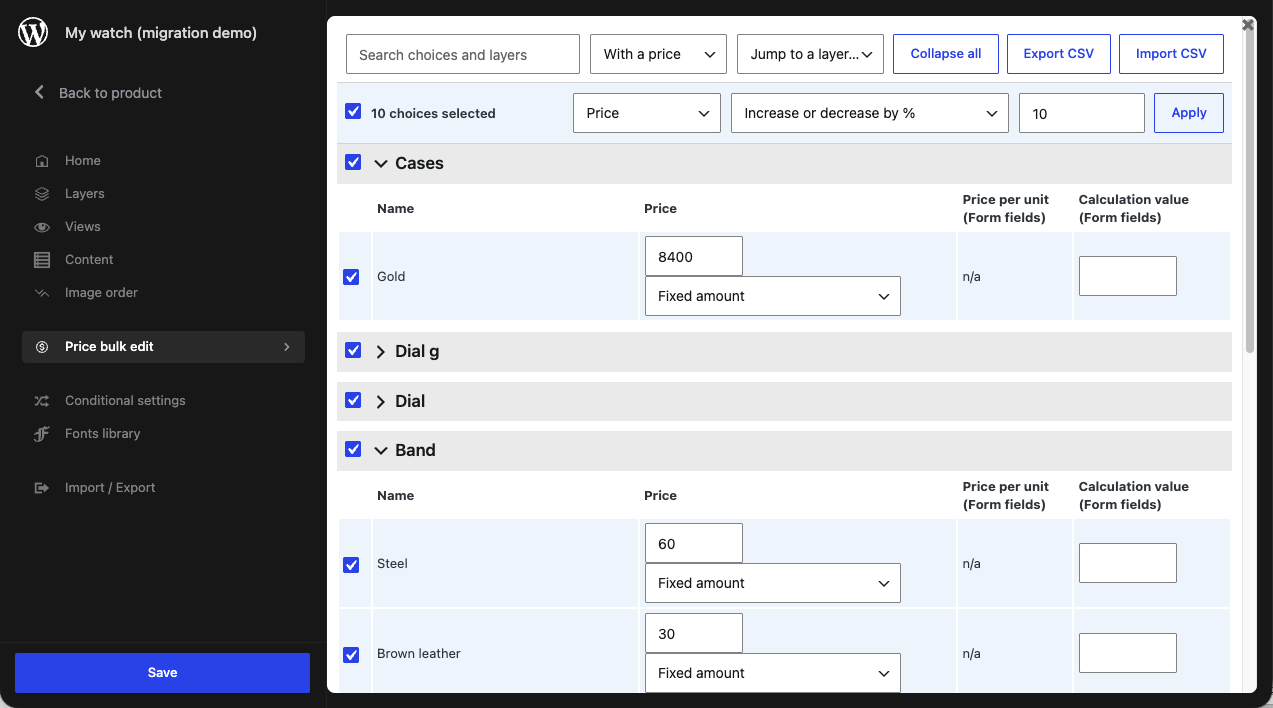
The table
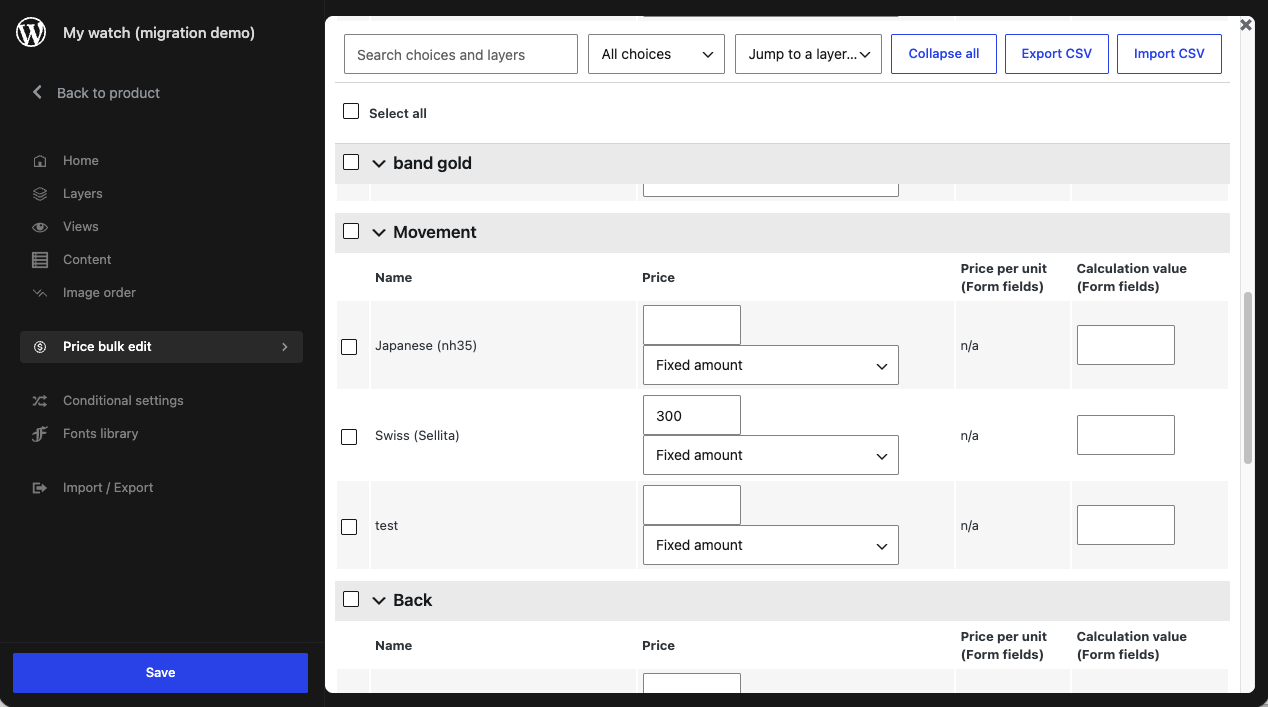
Each layer has its own table, in the same order as the configurator. A layer inside a layer group shows the group before its name, as in Cover › Paper colour. Choice groups appear as headings, with their choices indented under them.
Each row has these columns:
- Price — the choice's extra price, and its type: Fixed amount or Percentage of the product's price. See Adding a price to a choice.
- Price per unit — for number and quantity fields, when Form fields is active.
- Calculation value — the number a Price calculation field reads for this row, when Form fields is active. For a choice in a simple or multiple choice layer, that's its Calculation value. For a checkbox in a form, it's the Field value. For a select or radio option, it's the option's Value.
n/a means the column doesn't apply to that row. A text field has no price per unit, for example.
Type prices with a dot as the decimal separator (12.50, not 12,50). The cart reads 12,50 as 12.
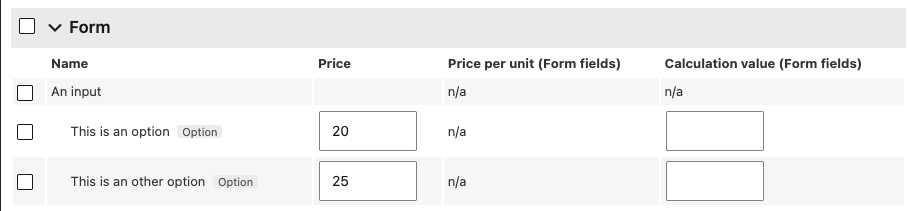
Select and radio options
Each option of a select or radio field has its own row under the field, marked Option, with its price and value. An option's price replaces the field's price when the customer picks it.
An option without a label uses its value as its name, so its row name changes when you change the value.
Linked products
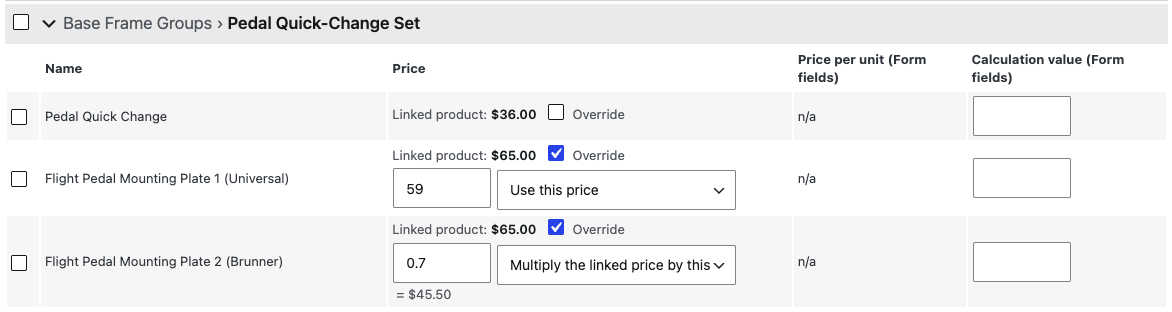
When When linking a product for stock management, also link the price is enabled (see Linked product), a choice with a linked product shows that product's price, and an Override checkbox:
- Not overridden — the choice costs the linked product's price. There's no price to type.
- Overridden — type the price, and choose what it means: Use this price, or Multiply the linked price by this. With a multiplier, the resulting price shows next to it:
0.9on a €12.00 product shows = €10.80.
The linked price shown is the price for one item, as read when the screen opens.
Global layers
A global layer is shared by every product that uses it, so its prices can't be changed from a product's table: its rows are greyed out, with a Global badge. To change them, unlock the layer's choices on the Content screen, or open the global layer and use its own Price bulk edit.
Finding choices
On a large configurator, the toolbar narrows the table down:
- Search — matches choice, choice group, option and layer names, ignoring case and accents:
cremefinds Crème. When a layer or group matches, all its choices show. When an option matches, its field shows too. - All choices / With a price / Without a price — shows only the rows that have, or don't have, a price. A zero price counts as no price. A choice using its linked product's price counts as priced.
- Jump to a layer — scrolls to a layer and opens it.
- Collapse all / Expand all — or click a layer's name to open or close it.
Changing many prices at once
Tick the rows to change. The checkbox in a layer's heading ticks all its rows, and Select all ticks every row shown. To tick a range, tick one row, then hold Shift and tick another.
Once rows are selected, the actions appear. Choose the column to change (Price, Price per unit or Calculation value), then the action:
| Action | What it does | Example |
|---|---|---|
| Set to | Replaces the value | 10 |
| Add or subtract an amount | Adds to the value; a negative number subtracts. An empty value starts from 0. | 5 or -5 |
| Increase or decrease by % | Scales the value | 10 for +10%, -10 for −10% |
| Round to the nearest | Rounds to a step | 1, 0.5, 5 |
| End in .99 | Keeps the whole number and sets the cents to .99: 12.30 becomes 12.99. A price of 0 stays 0. | |
| Clear | Empties the value | |
| Set the price type | Switches to Fixed amount or Percentage of the product's price (Price column only) | |
| Linked product price | Uses or overrides the linked product's price (Price column only, with linked product prices) |
Press Apply, or Enter in the value field. Changed values flash, and a message says how many changed.
Rows the action can't apply to are skipped and counted in the message: a row where the column is n/a, or whose value isn't a number. A choice using its linked product's price has no price of its own, so it's skipped too.
Prices are rounded to your store's number of decimals. Percentages, multipliers and calculation values keep their precision.
Undo in the message reverts the last action. Once you type in a field, Undo is no longer offered, so it can't overwrite what you typed.
[!NOTE] Search and filters only act on what's shown. When a filter hides a ticked row, the row is unticked, and Select all only ticks rows that are shown. A collapsed layer keeps its ticked rows.
Editing prices in a spreadsheet
Export CSV saves the prices to a file you can edit in Excel, Numbers or Google Sheets. Import CSV brings the edited file back.
Exporting
The file contains the rows you ticked or, when none are ticked, every row shown. Use the search and filters to export part of a configurator.
| Column | Contains |
|---|---|
layer_id, choice_id | Which choice the row is. Don't change these. |
option | For an option, its position in the field. |
layer, choice, option_label | Names, to help you read the file. |
price, price_type | The price, and amount or percentage. |
price_per_unit, calculation_value | With Form fields. |
linked_price | With linked product prices: the linked product's price, for reference. |
linked_override, linked_mode | 1 to override the linked price, 0 to use it; replace or multiply. |
A cell is empty when its column doesn't apply to the row.
When your store uses a comma as its decimal separator, the file uses commas in numbers and semicolons between columns (12,5;amount), as spreadsheets in those languages expect. Otherwise it uses 12.5,amount.
Importing
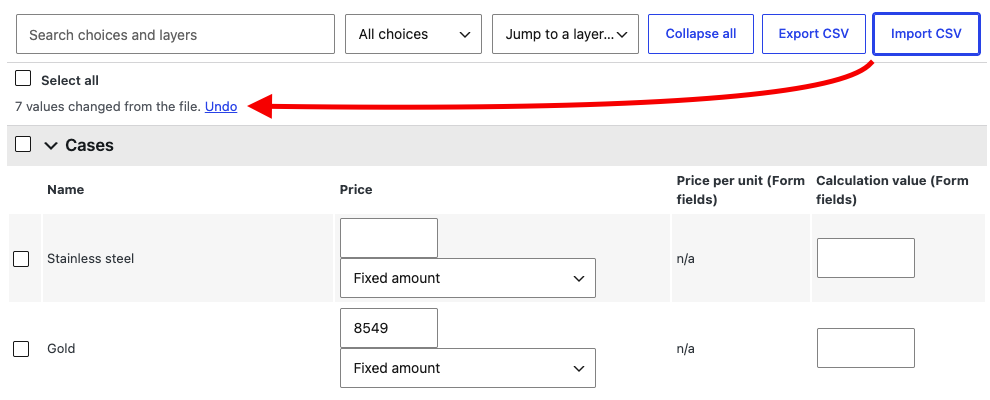
Save the file as CSV, then choose Import CSV. The table fills in with the file's values, and the changed values flash. Review them, then press Save, or press Undo in the message to revert the whole import.
- Rows are found by
layer_idandchoice_id. Changing a name in the file doesn't rename anything. - An empty cell clears the value. Deleting a price in the spreadsheet removes it.
- Rows and columns missing from the file are left as they are. You can delete the rows and columns you don't need before importing.
- An option is skipped when its
option_labelno longer matches, because options are found by position. This happens when options were added, removed or reordered since the export. Export again to get a fresh file. - A locked global layer's rows aren't changed.
Numbers can use either a comma or a dot as the decimal separator: 12,5, 12.5 and 1 234,50 are all read correctly.
After an import, the message says how many values changed, and how many rows and cells were skipped: rows not found in this configurator, locked rows, options that no longer match, cells in a column that doesn't apply to their row, and values that aren't valid for their column (like free as a price).
[!TIP] Export first, even to build a file from scratch: it gives you the ids and the expected column names.