
The order of images can be changed independently from the menu items.
Each layer has two independent orders, edited in two different sections of the configurator:
- Menu order — where the layer appears in the configurator menu. This is what you change by dragging layers in the Layers section.
- Image order — how pictures stack in the preview (which one sits on top). This is edited in the dedicated Image order section.
Changing one does not change the other.
Image order is only available on 2D configurators. A 3D product has no stacked images, so that section does not appear.
Change the menu order
- Open the product configurator and go to Layers.
- Drag the layers into the order you want.
That is the order customers see in the configurator menu. It does not change how the pictures stack.
Change the image order
- Open the product configurator and go to Image order.
- Drag the layers into the order you want. The live preview on the right redraws as you drag, so you can see the new stacking before you let go.
The list is a stack, front first: the layer at the top is labelled Front — drawn on top, and the layer at the bottom is labelled Back — drawn first.
You can also move a layer with the arrow buttons on its row, or type a position. Select several layers to send them to the front or the back together.
If the product has more than one view, a selector next to the preview lets you check the stack from each angle.
Hiding a layer on this screen only hides it from the preview, so you can see what sits under it. That visibility is not saved, and it does not hide the layer from customers.
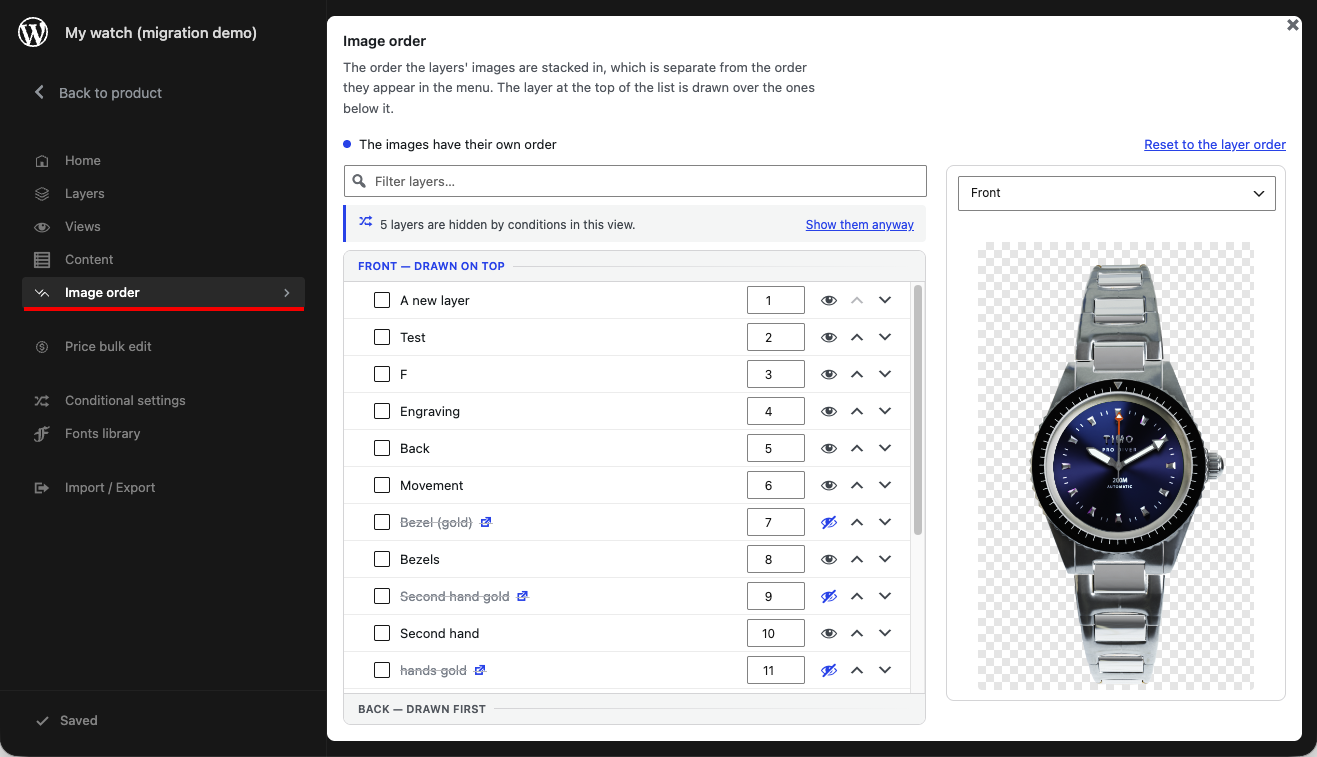
Until you change anything here, the images follow the layer order — the same order as the menu. The screen says so. As soon as you move a layer, the images have their own order, and Reset to the layer order appears so you can go back.
New layers
A new layer is added at the end of the menu.
While the images still follow the layer order, a new layer is stacked in that same place. Once the images have their own order, a new layer is added at the front of the stack — on top of the existing pictures.
If a new layer should sit behind others, open Image order and drag it down the list. If you add more layers later, check the image order again.