
Everything you build lives in the configurator editor, opened from the product you are configuring. This page explains how that screen is laid out and what each part is for. The rest of the documentation assumes these names.
Opening the configurator
The configurator is part of the product, not a separate screen:
- Edit the product,
- In the Product data panel, open the Configurator tab,
- Press Start product's configurator.
Two settings sit above that button and are worth understanding before you begin.
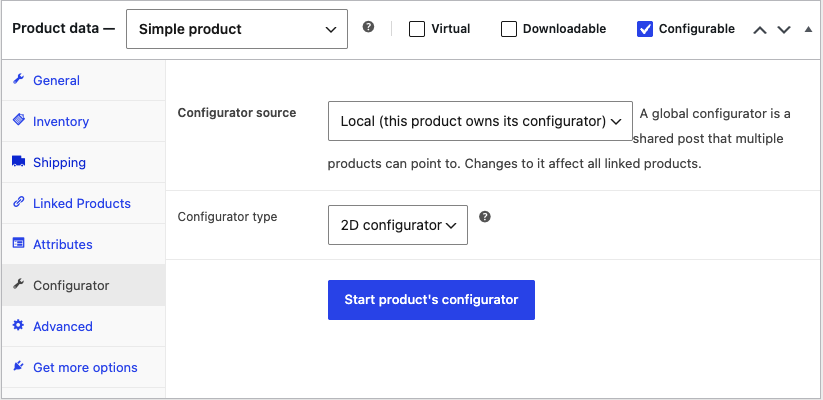
- Configurator source — whether this product owns its configurator, or shares one. See Local vs global configurators.
- Configurator type — whether the product is configured as a 2D configurator, built from layered images, or a 3D configurator, built from a model. The type changes which sections appear in the editor.
The layout
Most sections are arranged in three columns.
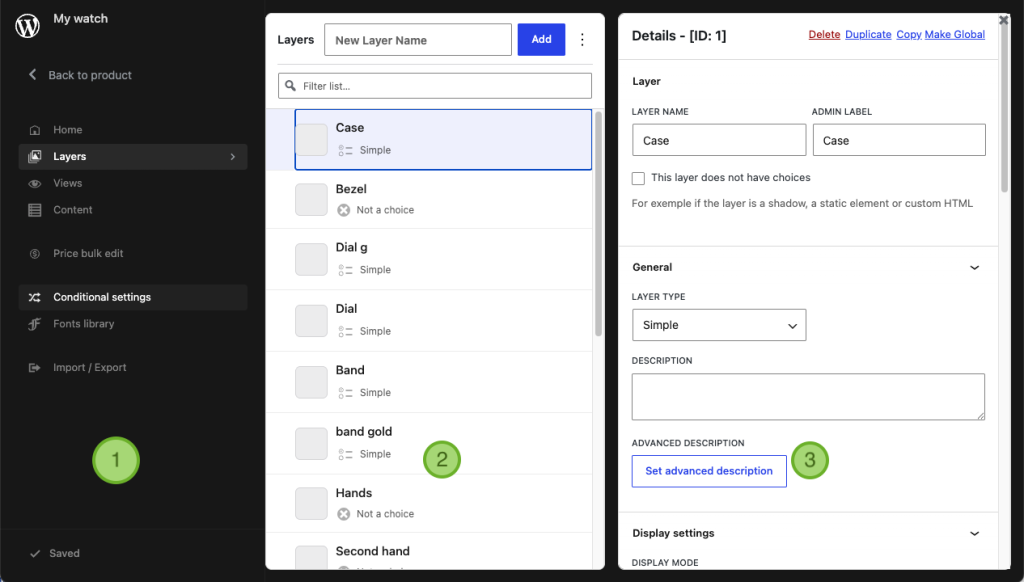
The sidebar, on the left, is the main navigation. It lists the sections described below, with Back to product at the top and the save button at the bottom.
The list panel, in the middle, shows the items in the current section. Every list in the editor works the same way: a Filter list… box for finding an item in a long list, and a New … Name field with an Add button for creating one.
The details panel, on the right, shows the settings for whichever item you selected, along with Delete, Duplicate and Copy actions. On a 2D configurator this column also holds the live preview.
Selecting an item in the list opens it in the details panel. Nothing is written to the product until you save.
Content has an extra column
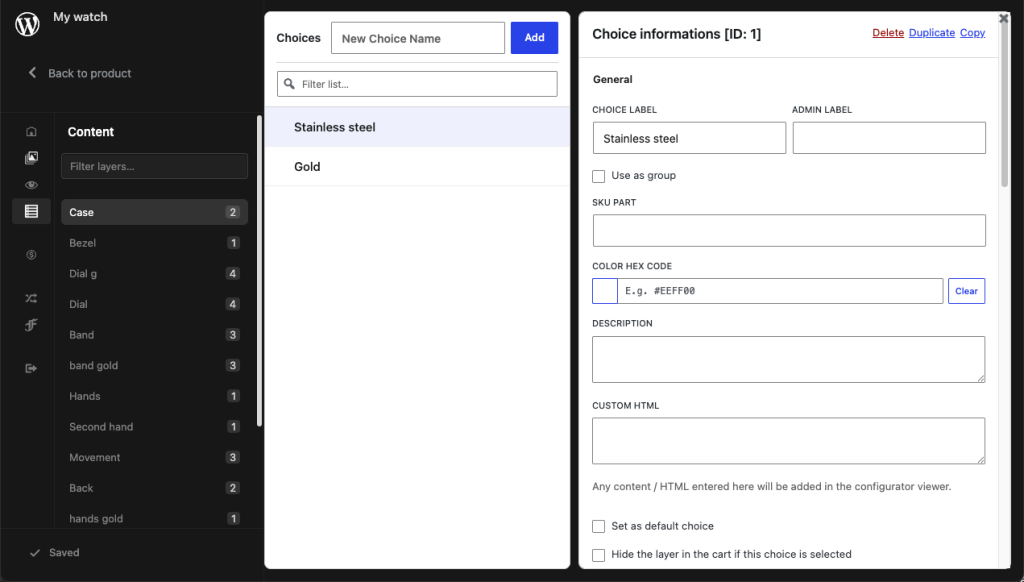
Content is the exception, because a choice belongs to a layer: you pick the layer first, then the choice inside it. To make room, the sidebar collapses to a narrow strip of icons and a fourth column appears — layers, then choices, then the selected choice's settings. Each layer in the list shows how many choices it holds.
That collapsed sidebar is deliberate, not a fault. The icons work exactly like the labelled entries, and the sidebar expands again as soon as you move to another section.
The sections
These are always present:
- Home — the starting screen for this product. See below.
- Layers — the layers the product is built from, and their settings.
- Views — the angles the customer can look at the product from.
- Content — the choices inside each layer: the actual options a customer picks.
- Import / Export — copy a whole configuration between products. See Importing and exporting a configuration.
The Home section
Home is where you land, and it collects the things that apply to the product as a whole rather than to one layer or choice:
- Any notices for this product, including the storage migration prompts described in Upgrading to v2.
- Links to this documentation.
- Turn into global configurator, for sharing this configurator with other products — see Creating and assigning a global configurator.
- Add configuration preset, when the Save your design add-on is active.
It also carries links for finding add-ons, leaving a review and opening a support topic.
On a 3D configurator two more appear:
- 3D Objects — everything in the 3D scene: the model, the lights and the environment. See 3D objects.
- 3D settings — which opens its own set of sections: Environment, Background, Shadows, Display, Renderer / Output, Camera positions (views) and Reset settings, plus AR / Quick Look and Postprocessing for the 3D Premium add-on. See 3D settings.
Add-ons contribute their own sections, so you will only see these if the matching add-on is active:
- Price bulk edit — from Extra price, for editing prices across many choices at once. See Price bulk edit.
- Conditional settings — from Conditional logic, for rules that show, hide or select options.
- Fonts library — from Text overlay, for the fonts customers can choose from.
If a section named in this documentation is missing from your sidebar, it belongs either to an add-on you do not have, or to a configurator type you are not using.
Saving
There is one save button, at the bottom of the sidebar, and it saves everything you have changed across every section at once. When there is nothing left to save it reads Saved.
The first time you save a product created before v2, the storage migration runs before the save completes. That is a one-off per product and is explained in Upgrading to v2.