
There are two ways to end up with a global configurator: promote one you have already built, or create an empty one and build it directly.
Option 1: turn an existing configurator into a global one
This is usually the easiest route, because you start from something you have already set up and tested.
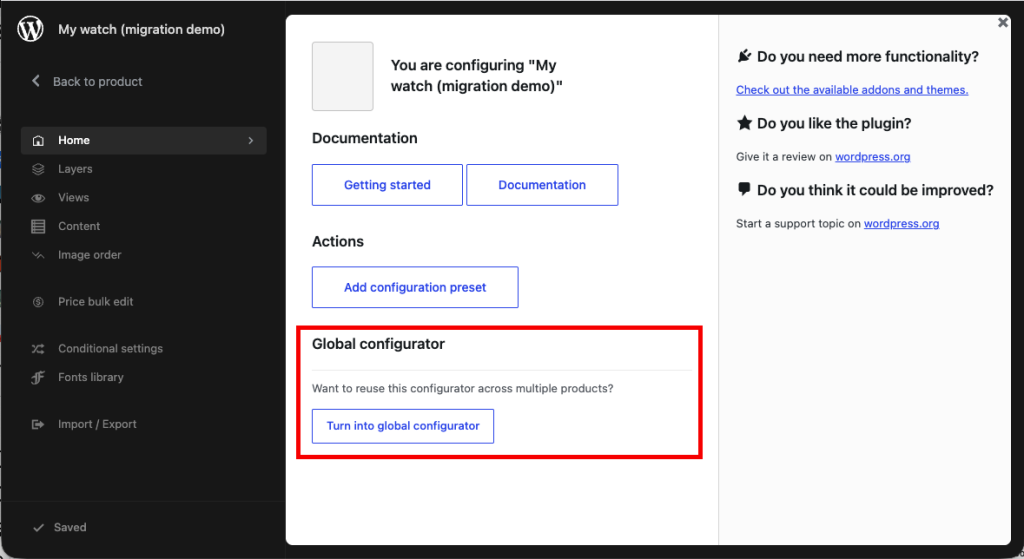
- Open the product whose configurator you want to share,
- Go to the configurator's Home tab,
- Press Turn into global configurator,
- Confirm.
The confirmation is worth reading, because the action is not purely additive:
Create a new global configurator from this product's configurator and link the product to it? The product's own configurator data will be replaced by the link.
A new global configurator is created from the product's layers and choices, and the product is switched to global mode and linked to it. The product no longer holds configurator data of its own.
Option 2: create one from scratch
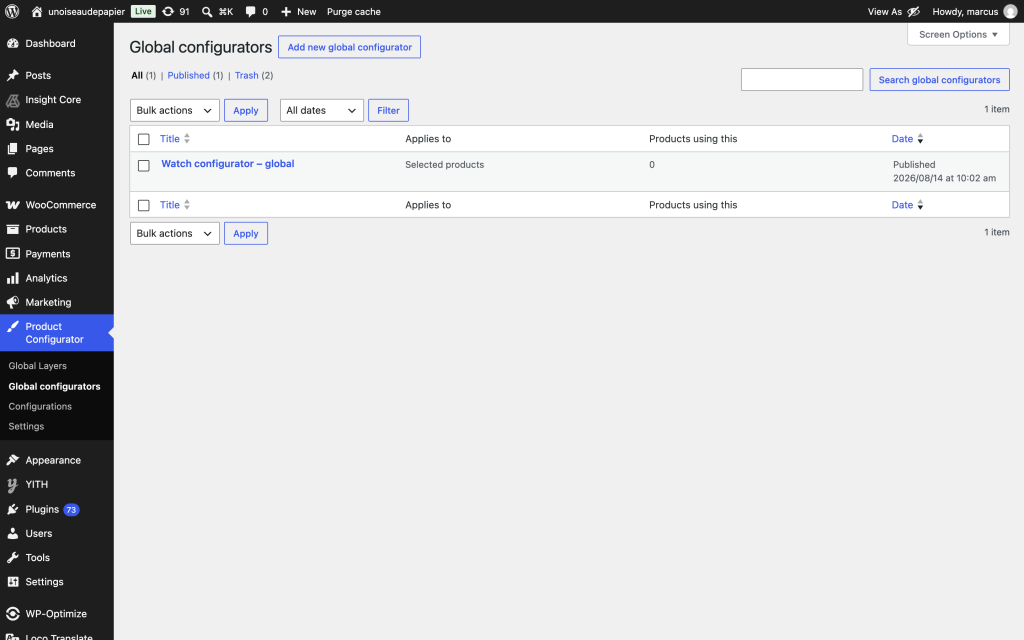
- Go to Product Configurator > Global configurators,
- Press Add new,
- Give it a name — this is only ever shown in the admin, so name it for yourself ("Standard fabric range" rather than "Chair"),
- Build the layers and choices exactly as you would on a product.
Assigning it to a product
Once a global configurator exists, point as many products at it as you like:
- Edit the product,
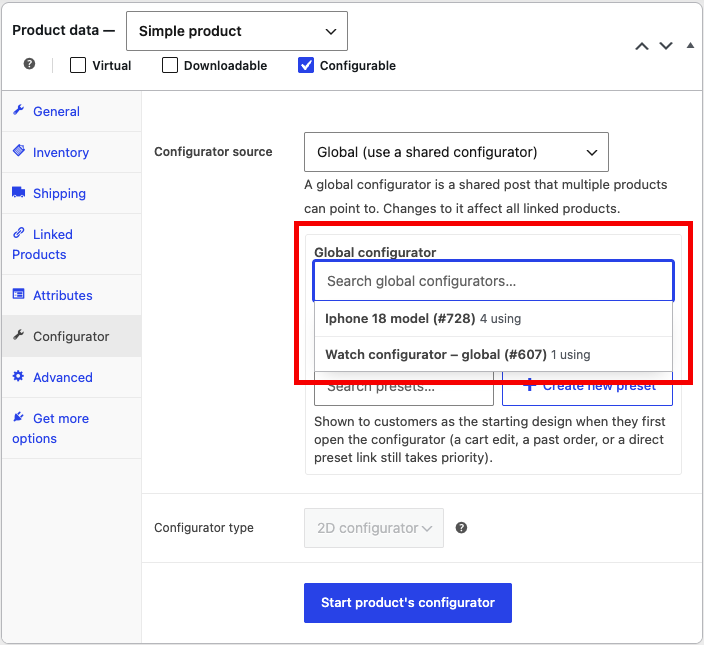
- Find the Configurator source setting,
- Choose Global (use a shared configurator),
- Search for the global configurator by name in the picker and select it,
- Update the product.
The picker searches as you type, so you do not need to scroll a long list. Once one is selected, an Edit link next to it opens that global configurator directly.
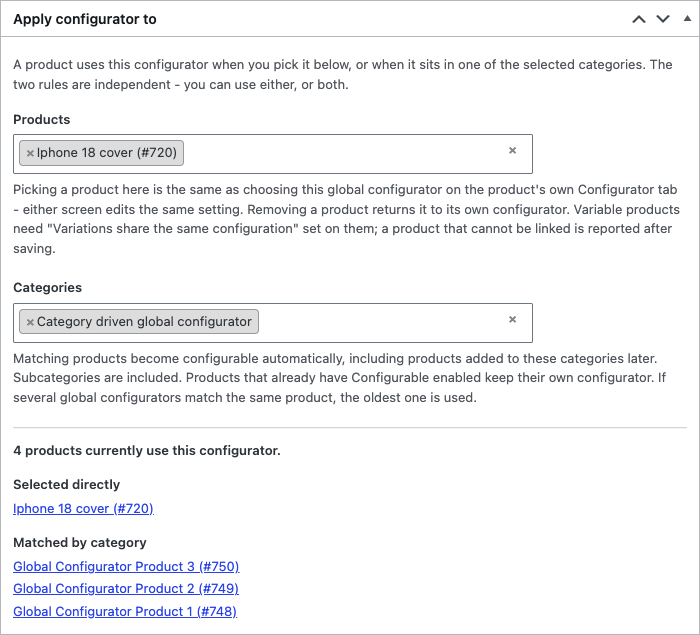
You can also assign from the global configurator itself. Use Products and Categories — they are independent, so pick specific products, whole categories, or both. Category assignment includes subcategories, and products added to those categories later pick it up automatically. Products that already have their own configurator are left alone.
Editing a global configurator
You can edit it from two places, and both edit the same thing:
- Directly, via Product Configurator > Global configurators,
- Or from any product linked to it — the editor redirects you to the global data rather than letting you create a divergent copy.
Because a single edit reaches every linked product, check the usage count before making significant changes. It is shown on the global configurator as the number of products currently using it.
Detaching a product
If one product needs to stop following the shared configurator:
- Open the product's configurator,
- Press Make local copy,
- Confirm.
Copy the global configurator's data onto this product and unlink it? Future changes will only affect this product.
The product gets its own independent copy of whatever the global configurator contains at that moment, and stops being affected by later changes to it. The global configurator itself is untouched, and the other products keep using it.
Deleting a global configurator
Before deleting one, reassign or detach the products still using it. A product left pointing at a deleted global configurator has no configurator data of its own to fall back on.
The safe order is:
- Check the usage count,
- On each product still using it, either pick a different global configurator or press Make local copy,
- Then delete the global configurator.