
Postprocessing applies effects to the finished image, after the model has been rendered. Examples are soft contact shadows where parts meet, reflections, a glow around lights, and photo-style contrast and grain. These effects make a real-time render look more like a product photograph.
You pick a look rather than configuring individual effects. Custom is there when you want to set each effect yourself.
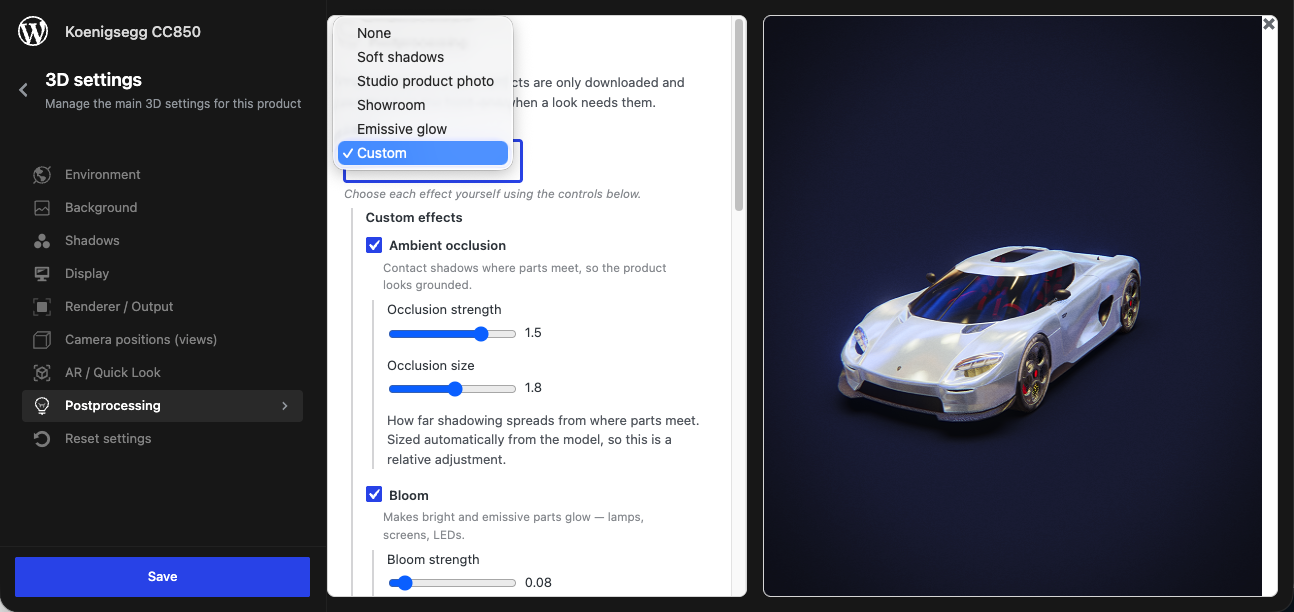
Choosing a look
Go to 3D settings > Postprocessing and pick a Look:
| Look | What it adds | Suits |
|---|---|---|
| None | Nothing. The default. | Products that already look right, or the lightest possible page |
| Soft shadows | Contact shadows where parts meet, so the product looks grounded rather than floating. | Almost anything. The safest first step. |
| Studio product photo | Contact shadows plus a subtle contrast and vignette pass. | The closest look to a photographed product |
| Showroom | Contact shadows plus screen space reflections. | Products with large glossy surfaces: cars, appliances, lacquered furniture |
| Emissive glow | Makes bright and emissive parts glow. | Lamps, screens, LEDs, backlit panels |
| Custom | Only the effects you turn on. | Fine control, described below |
Try Soft shadows or Studio product photo first. Get the lighting and exposure right before adding effects. Postprocessing improves a well-lit product, but it can't fix a badly lit one. See 3D settings.
The admin preview shows the chosen look, so you can compare them before saving.
On mobile
Phones pay the highest cost for these effects. On mobile decides what they get:
- Reduced (recommended): the same look, without screen space reflections, the most demanding effect.
- Same as desktop: everything, as on desktop.
- Off: no postprocessing on phones.
Keep Reduced unless you have tested the product on a mid-range phone and it stays smooth.
Custom effects
With Look set to Custom, four groups of effects can each be turned on and adjusted.
Ambient occlusion
Contact shadows where parts meet, so the product looks grounded.
- Occlusion strength: how dark the shadows are.
- Occlusion size: how far the shadowing spreads from where parts meet. It is sized automatically from the model, so this is a relative adjustment.
1is the automatic size.
Bloom
Makes bright and emissive parts glow.
- Bloom strength: how strong the glow is.
- Bloom radius: how far it spreads.
- Bloom threshold: how bright a part must be to glow. Lower it and more of the product glows. Raise it to keep the glow to lights and screens.
Image finishing
Contrast, colour, sharpening and grain applied to the final image, like a photo edit. This is the cheapest effect, and often the one that does most to stop a render looking like a render.
- Sharpen: crisper edges and texture.
- Black point: pulls the darkest tones down to true black. This is what stops tinted glass and shadows reading as flat grey.
- Shadow lift: opens up dark areas, such as a car interior or the inside of a bag, without brightening the rest of the image.
- Contrast and Saturation: as in any photo editor.
1leaves the image unchanged. - Vignette: darkens the corners, drawing the eye to the product.
- Film grain: a fine noise over the image.
- Chromatic aberration: slight colour fringing towards the edges, like a camera lens.
Grain and chromatic aberration are lens and film artefacts. Small amounts read as photographic. Large amounts look broken.
Screen space reflections
Reflections of the product in its own glossy surfaces.
- Reflection opacity: how strong the reflections are.
- Blur reflections: softens them. Turn it off for mirror-like surfaces such as chrome or polished glass.
Reflections only appear on metallic and smooth materials, and they can only reflect what is currently on screen. Anything outside the view, or hidden behind another part, is not reflected. While reflections are on, the viewer switches to a different anti-aliasing method (SMAA), because reflections can't use the standard one.
Images saved with the order
The picture of the configuration saved to the cart, the order and quotes is taken from the 3D viewer with the same look. The image in the order matches what the customer saw.
Performance
- Effects are downloaded only when the chosen look needs them. With None, nothing extra loads.
- Each effect adds work on every frame. Screen space reflections and ambient occlusion cost the most, and image finishing costs the least.
- Test on a phone. Where it matters, keep On mobile at Reduced or Off.
- Developers adding their own effects with code should read how custom passes combine with this add-on in the 3D runtime API.